On a recent project, I had the task of figuring out a way to host videos for an online course that weren’t going to be hosted on YouTube or Vimeo for private viewing reasons and, in Vimeo’s case, cost.
In doing some research, I had found out that you could actually embed videos from your Google Drive. I got so excited thinking that this was a fantastic solution. I added in the code to the various lessons of the course, and sure enough, I was able to view them- well, sort of.
On safari, privacy preferences affected viewing the videos, so I had to go in and fix my settings. While I didn’t mind doing this, I’m also tech savvy. So this wasn’t an issue for me. However, most people would have no idea they had to change their privacy settings to fix this problem, so this was not feasible for customers. Then the second issue that came up was that I couldn’t view the videos on mobile! What the heck? When the majority of the market views things on their phone, this was a HUGE issue. So, it was then decided that Google Drive was actually NOT the answer to my task of embedding videos.
I did more research exploring all kinds of blogs and forums and I finally stumbled upon one way that ended up working perfect for me, Dropbox.
How To Embed Dropbox Videos To Your Website
In exploring the web, you can find all kinds of posts and videos about this topic, but this work around seemed to work the best for me, so I thought I’d share with you!
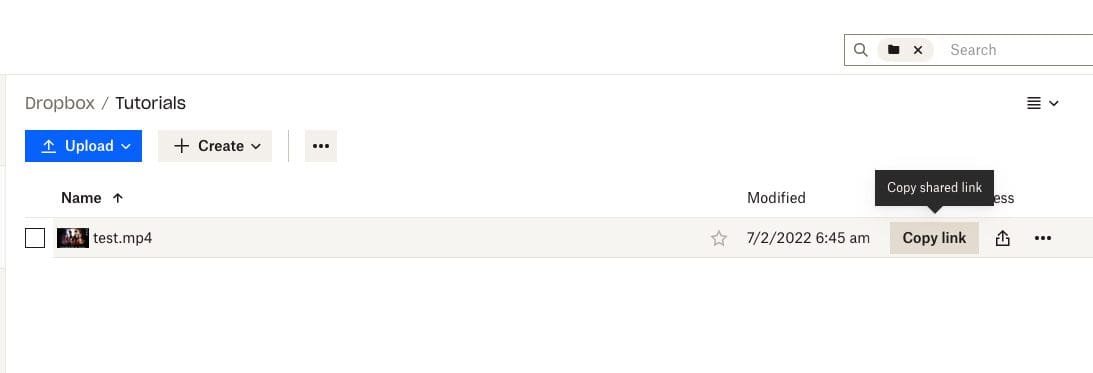
Find your video you wish to embed, and copy the whole link.
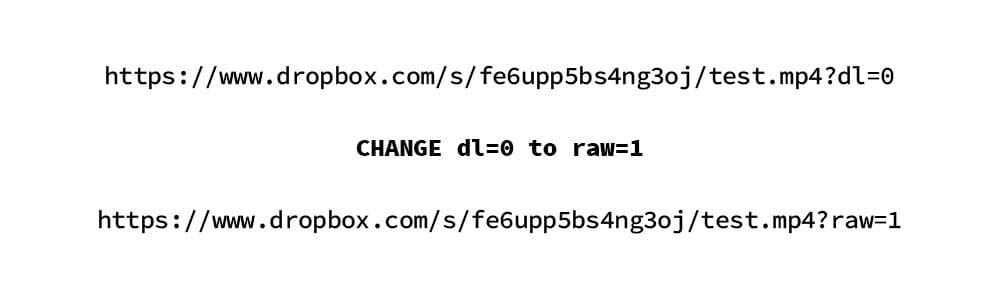
Now take your link and swap the dl=0 to raw=1. You will see in the images how this should look.
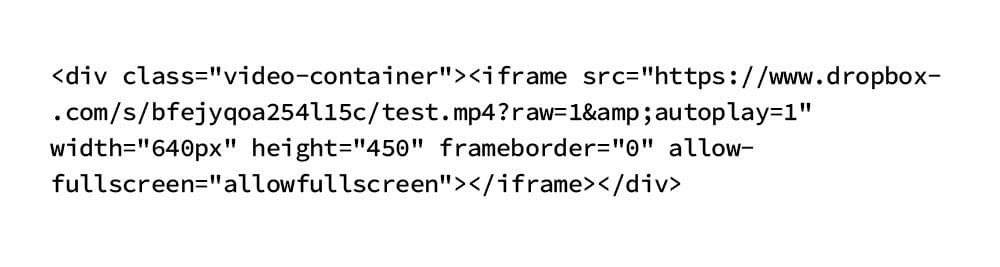
This is the final code that I placed on each page, which worked beautifully. I do have a video-container added to mine with some CSS added on the backed to make it respond as I need it to, but if you don’t have this, an iframe would work just fine.
Please note: this clip was a 1 sec screen recording .
As you can see, the video plays nicely on both desktop and mobile!
One weird issue I did find is when the video was a .mov it would not show and instead instantly download the video to my desktop once I viewed the page. All I did was make the video a .mp4, and that solved that issue!
Let me know in the comments how this process worked for you. Did you run into any issues? Do you have another solution that worked even better? Let me know! Let’s help each other out!
Dani
Really nice tutorial Kayla, best place I found this step by step, thanks.